
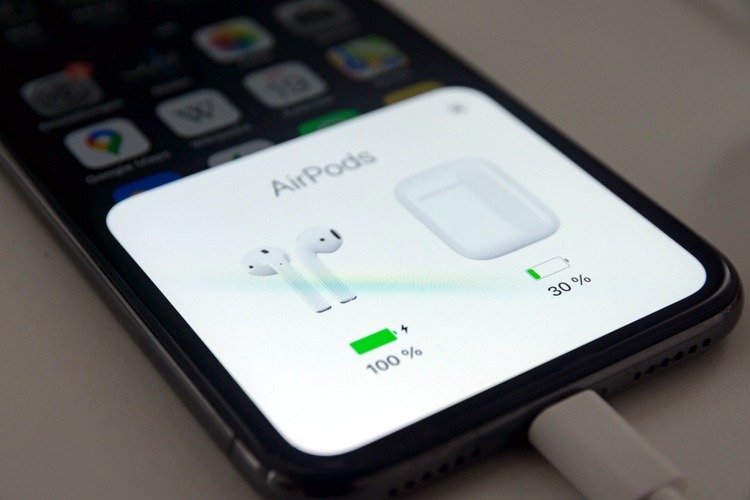
The Apple ecosystem is fully tuned for AirPods to operate without any issues. But it is very crucial to know how long your AirPods battery will last whether you are going to go for a run or are currently working. From your iPhone, iPad, or Mac computer, you can instantly check the battery life of your AirPods. If you are wondering how to check airpods battery, this write-up will assist you.
How To Check Airpods Battery?
-
From iPhone and iPad
Here are the best methods to check the battery status for your AirPods and charging case from iPhone iPad.
a)Method 1: Check Battery Widget on iPhone
So, how to check airpods battery from iPhone and iPad? The simplest way to get a quick glimpse of your AirPods battery life is by using the Batteries widget on iPhone. To add the widget:
-
Go to your iPhone home screen and long press to enter “jiggle” mode.
-
Tap the + icon in the top left corner to go to your widget options.
-
Search for “Batteries” and select the single medium size widget.
-
The widget will display the battery percentage for your paired AirPods case and earbuds.
You can now quickly check the widget right from your home screen to see if your AirPods need charging.
b) Method 2: View from Control Center
You can also check AirPods battery levels from the Control Center on iPhone or iPad. To view:
-
First you need to access the Control Center.
-
Long press on the audio card in the top right. This expands the card.
-
Your AirPods case and earbuds battery charge percentages will display under the volume controls.
-
Close Control Center when finished.
Check this way to get AirPods battery levels at a glance whenever needed.
c) Method 3: Check via Siri Voice Command
If you want to find out how to check airpods battery, Siri voice command can help you. If your hands are full, you can ask Siri to tell you the battery status. You can ask Siri to tell you the battery level by saying “Hey Siri, how much battery do my AirPods have left?”
Siri will respond with the current battery percentage for the case and each earbud. Use this voice command option to conveniently get a battery update on the go.
d) Method 4: View in the Find My App
Find my app is particularly useful for those who want to know how to check airpods battery in real time. To check:
-
Go to the Find My app and then sign in with your Apple ID if needed.
-
Select the Devices tab at the bottom.
-
Choose your AirPods from the device list. The battery status will display.
-
You can view both the left and right AirPod battery levels, updated in real-time.
-
Close the app when finished.
The Find My app provides the most detailed battery tracking.
-
From Mac
Mac users have a great way to monitor AirPods battery life right from their computer. You can quickly view your AirPods battery levels through the Bluetooth menu:
-
Click the Bluetooth icon in your Mac’s menu bar to open the Bluetooth settings.
-
Locate your AirPods in the list of paired devices and click the “i” icon next to them.
-
This will open a pop-up with details on your AirPods. It will display the battery percentage for each earbud and the charging case.
-
Glance at the percentages to see if your AirPods need recharging soon.
-
Close the Bluetooth settings when finished checking the battery levels.
It allows you to check the battery level of the buds and the case both.
-
From Android
Unlike iPhones, AirPods don’t automatically display battery information on Android devices. However, you can use the handy AirBattery app to monitor your AirPods power levels on any Android smartphone or tablet. To get started:
-
Download and install the AirBattery app from the Google Play store on your Android device. Open the app and make sure Bluetooth is enabled on your phone or tablet.
-
The app will automatically detect and connect to the AirPods once paired. You’ll see the real-time battery percentage for both earbuds and the charging case.
-
You can tap the refresh icon anytime to get the latest battery stats if they don’t update automatically.
-
When finished checking, simply close the AirBattery app.
Frequently Asked Questions
Q: Do the AirPods show separate battery for left and right?
A: Yes, some of the above mentioned how to check airpods battery methods show individual battery levels for the left and right AirPod.
Q: How often should I check the AirPods battery levels?
A: It’s a good idea to check the battery at least once a day before using your AirPods to ensure they are sufficiently charged.
Q: Can the AirPods charge in the case while I check the battery?
A: Yes, you can check the battery levels while the AirPods are charging in the case. The percentages will update in real-time.
Q: Do AirPods warn when the battery is low?
A: Your iOS device will display a notification when the AirPods battery drops below 10%. Siri will also alert you.
Q: Why does Find My show different battery levels than Control Center?
A: Find My provides more precise real-time data. Control Center battery snapshots may be slightly delayed.
Q: Can I check AirPods case battery separately?
A: Yes, all battery check methods show the AirPods case battery percentage separate from the individual earbuds.
Q: How accurate is the battery percentage shown for AirPods?
A: The battery levels displayed are estimates based on voltage – they may not match the exact charge percentage remaining.
Overview
This shall clear your doubts on how to check airpods battery. As TWS headphones are becoming more popular, Airpods have become one of the best selling products of Apple. While the wireless technology is almost perfect, the only thing to worry about here is the battery. Try to check the battery level from time to time to be on the safer side.